Chapter 12 — Software: Pi OS image, Klipper/Moonraker/Mainsail, firmware, printer.cfg¶
One page per step
Read this chapter one step per page — big pictures, prev/next, and the same tick marks. This page is the whole chapter in one scroll.
Images the Raspberry Pi, flashes Klipper onto both MCUs, and installs a printer.cfg that is correct for a 350 mm Rev D+ — so that Ch 13 can power up a machine that already knows its own geometry.
What you're building in this chapter. The printer's software comes in layers, and keeping them apart makes everything below easier. Klipper is the firmware, and it is split in two: a host process on the Raspberry Pi that does all the planning and arithmetic, and a thin MCU firmware on each microcontroller — the Leviathan mainboard in the bay and the Nitehawk-SB V2 toolboard on the printhead — that does nothing but execute precisely timed pin changes. Moonraker is the API service sitting in front of Klipper so other programs can talk to it, and Mainsail (in a browser) and KlipperScreen (on the front panel) are two such programs — two windows onto the same machine. You will image the Pi with MainsailOS, which ships all of that pre-installed; compile and flash both MCU firmwares from the exact host version; and then write printer.cfg, the single text file that tells Klipper what this machine is — its pins, its 350 mm dimensions, its heaters, probe, fans and macros. Nothing moves and nothing heats until Ch 13.
Time: 2.0–3.0 h hands-on, first build (survey §7.2). Add ~30 min if you have to reinstall Katapult on either board.
Sessions: 9 × ~30 min (Pause segments below; every minute figure in this chapter is a first-build estimate derived from the Time range and the step count).
Prerequisites:
- Ch 10 — Electronics bay wiring, complete, with LDO Checkpoint #1 passed (multimeter, unplugged) and the PSU powered on once at Step 10.23. The cord has been out since then; it goes back in at Step 12.11, which is the first time the Leviathan, the Pi and the toolboard are energised — with the same hand-on-switch drill as 10.23. Both MCUs must be powered and connected to the Pi over USB before Steps 12.11 onward.
- The Pi-side half (Steps 12.1–12.10) has no hardware prerequisite and can be bench-done on day one — power the Pi from its own USB-C supply instead of the Leviathan's Pi rail (survey §5.1, P12: "the whole flash+install can be bench-done on day one").
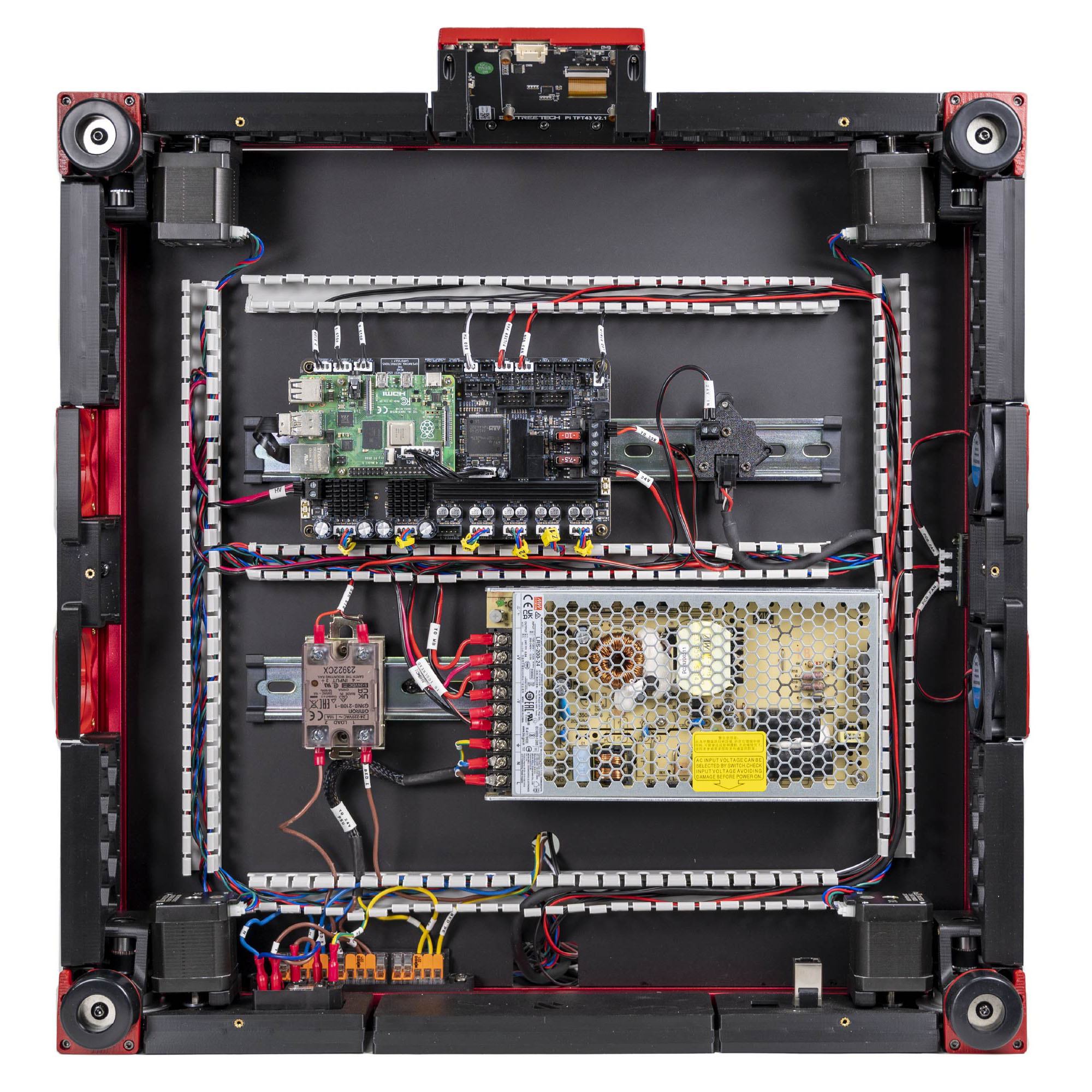
- Ch 11 Part A comes after this chapter's Part 2, not before: the bay stays open through Steps 12.11–12.37 (index rows 24–26). The touchscreen module is already built and its DSI ribbon latched at both ends (Ch 10 Step 10.50), so 12.11 is the first time the panel is seen.
- Printed parts: none. No print batch gates this chapter.
- Do not start Ch 13 until Checkpoint 12 below passes.
Tools
- Laptop with an SD card reader
- Raspberry Pi Imager (download from raspberrypi.com/software)
- Ethernet cable (use wired for the flashing session; Wi-Fi is the fallback)
- USB cable, Pi ↔ Leviathan (supplied with the kit; connector type
(verify on bench)) - A USB-C 5 V/3 A supply if you are bench-doing the Pi half before the bay is live
Consumables: the supplied 32 GB microSD card. Nothing else.
Printed parts
| STL | Qty | Colour |
|---|---|---|
| — none — | 0 | — |
Hardware (chapter totals)
| Fastener / part | Qty | Note |
|---|---|---|
| — none — | 0 | Software only. The Pi was fitted in Ch 09; the touchscreen module was built and its DSI ribbon latched at both ends at Ch 10 Step 10.50 (Ch 11 Steps 11.5–11.6 run from there); the module is bolted into the skirt ring at Ch 11 Step 11.7, after this chapter |
Read first
- Use
leviathan-printer-rev-d-sbv2.cfg, neverleviathan-printer-rev-d.cfg. The Rev D wiring guide links the wrong one. Everynhk:pin differs because the toolboard MCU changed family. Klipper checks every pin name against the board it is sent to, so the V1 file does not mis-drive anything — it refuses to start at Step 12.37 withPin 'gpio23' is not a valid pin name on mcu 'nhk'. The one-line identity check isgrep -c gpio printer.cfg: 0 on the V2 file, 20 on the V1 file (survey §4.1 ①). - The toolboard is an STM32G0B1, not an RP2040. The wiring guide's sentence "The Nitehawk uses an RP2040 MCU" is stale. Its USB ID will read
usb-Klipper_stm32g0b1xx_…. Match on that string, not onrp2040(survey §4.1 ②). - The stock config ships with every build-size option commented out and no
[bed_mesh]at all. Six separate places need the 350 mm lines uncommented, and the mesh section has to be written from scratch (survey §4.4 #15). - Confirm which Leviathan you have before you run
make menuconfig. LDO shipped an STM32F446 Leviathan (V1.1/V1.2) and later an STM32H743 one (V1.3). Processor model, clock reference and bootloader offset all differ; the wrong combination produces firmware that will not run. Step 12.13 settles it from the board itself. - Nothing moves and nothing heats in this chapter. The chapter ends at "Klipper reports Ready with both MCUs connected". Homing, heaters, fans and motion are Ch 13.
Sources for this chapter:
leviathan-printer-rev-d-sbv2.cfgat commit667521d— the config this chapter edits; every config step links the exact line range- Klipper Config Reference, G-Codes, Installation and Config checks
- MainsailOS docs (imaging, first boot) and Mainsail docs (
mainsail.cfg, error FAQ) - Nitehawk-SB V2 board doc — menuconfig,
make flash, Katapult; repo images at commit42ae497 - LDO Leviathan V1.2 guide, Leviathan V1.3 guide and the Leviathan repo — the contested MCU question in step 12.13
- LDO wiring guide § Software setup and the LDO Klipper-ID guide
- KIAUH, KlipperScreen, Moonraker configuration
- Screenshots mirrored into
assets/remote/12-software/from LDOVoron2 (8270e8c) and Nitehawk-SB-V2 (42ae497) — LDO Motors' work, mirrored with attribution for this non-commercial manual; see that folder'sSOURCES.txt
Video coverage (Steve Builds, pre-release LDO kit — differs from Rev D+): Part 8 @2:25:00 (+9m), Part 8 @2:33:20 (+9m), Part 9 @1:00:43 (+5m), Part 9 @1:05:13 (+18m), Part 9 @1:22:28 (+3m), Part 9 @1:25:00 (+5m), Part 9 @2:35:40 (+14m), Extras! @0:14:05 (+26m), Extras! @0:45:30 (+3m), Extras! @0:48:23 (+18m), More Extras! @3:10:29 (+11m)
Step 12.1 — Decide where you are doing the Pi half¶
What you're looking at: The photo is a Raspberry Pi 4B, the printer's host: it runs the Klipper motion planner, the web interface and the touchscreen. Ethernet and USB sit at one end; the microSD slot is underneath, at the other.
Parts: none.
Do:
- Bay not yet wired: take the Pi off its mount and feed it from a USB-C 5 V/3 A supply.
- Checkpoint #1 passed: leave the Pi on the board and power the bay.
- Plug in Ethernet.
 Check
Check
You can identify the Pi's SD slot and its Ethernet port, and you have a way to power it that is not the printer's mains.
Caution
Rev D+ / LDO: the Leviathan supplies the Pi from its own dedicated Pi rail, so on the assembled machine "power the Pi" means "switch on the printer". That is why this chapter is gated on Checkpoint #1 (survey §4.4 #8). src
Source: MainsailOS install docs · LDO Leviathan repo · Raspberry Pi docs image 4-model-b.jpg (CC-BY-SA-4.0)

Step 12.2 — Write MainsailOS with Raspberry Pi Imager¶
What you're looking at: MainsailOS is a ready-made Pi disk image carrying Klipper, which runs the machine, Moonraker, the API in front of it, and Mainsail, the web page you drive it from. The screenshots walk the Imager's menus to it.
Parts:
- consumable: the kit's 32 GB microSD card
- tool: SD card reader
Do:
- Insert the card, launch Raspberry Pi Imager, Choose Device → Raspberry Pi 4.
- Choose OS → Other specific-purpose OS → 3D printing → MainsailOS → 64-bit.
- Choose Storage → the SD card; read the description twice.
Check
The summary line names your Pi model, MainsailOS 64-bit, and the correct removable drive.
Caution
Rev D+ / LDO: LDO's wiring guide tells you to install Raspberry Pi OS Lite (32-bit) and add Klipper/Moonraker/Mainsail with KIAUH. MainsailOS ships those plus Crowsnest, Sonar, Timelapse and the input-shaper dependencies, pre-wired: same end state, four fewer passes. Take the MainsailOS path; you need KIAUH in Step 12.8 for KlipperScreen, which MainsailOS does not include. src · src
Source: MainsailOS install docs · LDO wiring guide § Software setup · Video: Part 8 @2:31:43
Step 12.3 — Fill in the Imager customisation¶
What you're looking at: The Imager's customisation pages write settings into the image before it boots, so the Pi comes up named, on the network and reachable over SSH. The screenshots carry placeholder values; type your own. The hostname is the address you use from now on.
Parts: none.
Do:
- Hostname:
vorongives youhttp://voron.local. Localisation: your timezone. - User: a username and a real password, never the
pi/raspberrydefault. Wi-Fi: SSID and password. - Remote access: enable SSH. Write, confirming the erase prompt.
Check
Imager reports a successful write and verify. Eject the card.
 Tip
Tip
set both Wi-Fi and plug in Ethernet. Wi-Fi is the long-term link; Ethernet is what you fall back to when Wi-Fi is the thing that broke. src
Source: MainsailOS install docs · Video: Part 8 @2:25:16
Step 12.4 — First boot¶
(no image — see text)
What you're looking at: On its first boot the image expands itself to fill the card, which is why this takes minutes rather than seconds. The DHCP reservation pins the Pi's address in your router so it cannot move later and break every link you have written down.
Parts: none.
Do: Put the card in the Pi, connect Ethernet, power on and leave it alone. First boot expands the filesystem, up to five minutes. Watch the green activity LED: occasional flickers mean it is done.
Check
ping voron.local answers, with your own hostname. If the .local name does not resolve, find the Pi's IP in your router's DHCP table.
Check
Give the Pi a DHCP reservation in your router now, before you paste its address into anything.
Source: MainsailOS first boot
Step 12.5 — Reach Mainsail and open an SSH session¶
(no image of your own printer yet — simulated printer: your numbers differ)
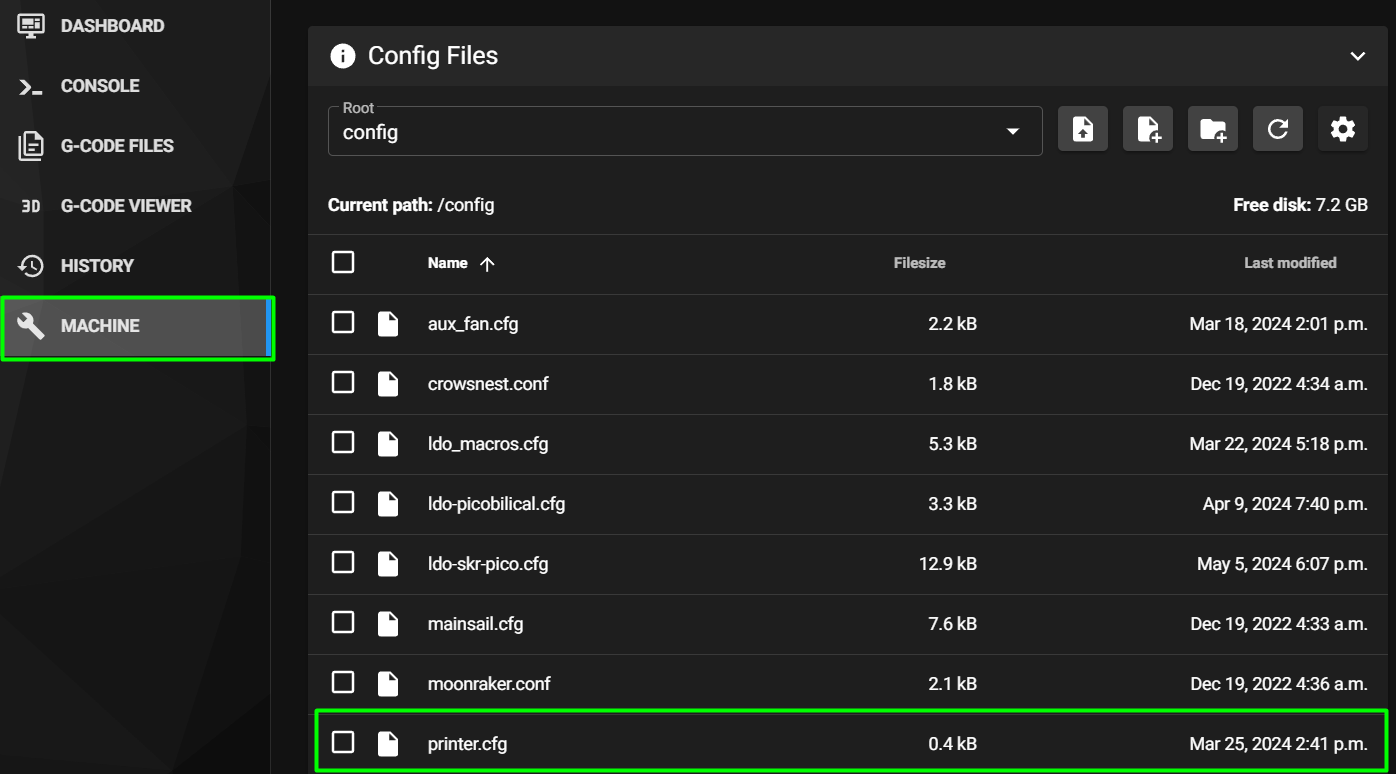
What you're looking at: The first screenshot is Mainsail's Machine page, where every config file in this chapter gets edited. The second is the dashboard of a printer that already has a printer.cfg. Yours shows an error first: MainsailOS ships no printer.cfg.
Parts: none.
Do: Open http://voron.local in a browser. Mainsail loads and reports a Klipper error: "Unable to open config file printer.cfg". That is expected; MainsailOS ships no printer.cfg. In a terminal, ssh <youruser>@voron.local.
Check
Mainsail's UI renders, the error names the missing printer.cfg, and your SSH session lands at a shell prompt.
Source: LDO Rev D photo, Mainsail Machine page · MainsailOS first boot · Video: Part 9 @1:06:04
Step 12.6 — Update everything before you touch anything else¶
What you're looking at: The screenshot, from the Mainsail docs, is the Update Manager: Moonraker's package updater inside Mainsail. It runs now because each MCU's firmware has to be compiled from exactly the Klipper version the host ends up on.
Parts: none.
Do: In Mainsail go to Machine → Update Manager, bottom right, and click Update all components. Let it finish, including the system packages. Reboot if it asks.
Check
Every row in the Update Manager reads up to date.
Why now: the version of Klipper you end up with here is the version you must build MCU firmware from in Steps 12.14 and 12.17. Update first, then flash — do it the other way round and you will re-flash both boards after the first update. src
Source: MainsailOS first boot · Mainsail docs image first-boot-update-manager.png (GPL-3.0) · Video: Extras! @0:18:01 (differs: BTT Octopus + separate Raspberry Pi; this kit is a Leviathan with the Pi mounted on it)

 Good stopping point · ~25 min since the last one
MainsailOS written, first boot done, the Pi is on the network and Mainsail answers on voron.local, and everything is updated. The printer is still unpowered. A good place to stop: nothing is half-flashed.
Step 12.7 — Record the Klipper version you are building against¶
(no image — see text)
What you're looking at: Klipper is two halves that must match: a host process on the Pi and a small firmware on each microcontroller. git describe prints the exact commit the host half is at, and both firmware builds must come from this working copy.
Parts: none.
Do: In SSH:
cd ~/klipper && git describe --tags --always --dirty
Write the string down (or paste it into your build notes). Both MCUs must be flashed from this exact working copy.
Check
You have one version string, and ls ~/printer_data/config/ shows mainsail.cfg and moonraker.conf but no printer.cfg.
Helper: Copies the version string into the build notes and reads it back, character by character.
Why: if the host Klipper and an MCU's firmware were built from different commits, Klipper aborts at connect with a Command format mismatch error naming the offending MCU. src
Source: Mainsail FAQ — command format mismatch · Klipper docs § Installation
Step 12.8 — Install KIAUH¶
(no image — see text)
What you're looking at: KIAUH, the Klipper Installation And Update Helper, is a menu-driven installer for the Klipper ecosystem. MainsailOS has already installed everything it offers except KlipperScreen, so it is here for exactly one job.
Parts: none.
Do: In SSH:
sudo apt-get update && sudo apt-get install git -y
cd ~ && git clone https://github.com/dw-0/kiauh.git
./kiauh/kiauh.sh
You land in KIAUH's main menu. Do not use it to install Klipper, Moonraker or Mainsail — MainsailOS already has them, and a second install will fight the first.
Check
KIAUH's status panel shows Klipper, Moonraker and Mainsail as already installed, and KlipperScreen as not installed.
Source: KIAUH README · Video: Extras! @1:30:08
Step 12.9 — Install KlipperScreen¶
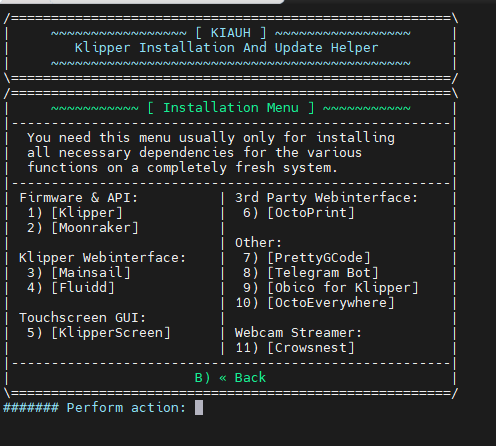
What you're looking at: KlipperScreen is the touchscreen front end: the same printer, driven from the 4.3" panel instead of a browser. It installs into its own Python environment and runs as a service alongside Mainsail. The screenshot is KIAUH's Installation menu, where it is option 5.
Parts: none.
Do:
- From KIAUH's main menu choose Install → KlipperScreen and let it run.
- Confirm Moonraker gained an
[update_manager KlipperScreen]block in~/printer_data/config/moonraker.conf. - If not, add it by hand from the KlipperScreen install docs and restart Moonraker.
Check
systemctl status KlipperScreen shows the unit loaded. It will not display anything useful yet: there is no printer.cfg.
Source: KlipperScreen installation · LDO BTT 4.3" screen guide · LDO wiring photo KIAUH_install_opt.png
Step 12.10 — Bring up the DSI panel and rotate it¶
What you're looking at: DSI is the Pi's native display connection, where the panel's ribbon plugs in. Rotation goes in the kernel command line because the current driver ignores the old config-file setting. The screenshot, from the KlipperScreen docs, is its home panel.
Parts: none.
Do: Nothing plugs in here; Ch 10 connected the panel. Two edits now, with the Pi still on the bench. First, confirm display_auto_detect=1 is present in /boot/firmware/config.txt; add it if missing. Second, sudo nano /boot/firmware/cmdline.txt and append to the single existing line, no line breaks:
video=DSI-1:800x480@60,rotate=180
Reboot. LDO's mount hangs the panel 180° from the Pi's default.
Check
config.txt carries display_auto_detect=1, cmdline.txt carries the video= line, and the Pi still boots. The panel itself is checked at Step 12.11.
Caution
Rev D+ / LDO: LDO's touchscreen guide tells you to edit /boot/config.txt, comment out dtoverlay=vc4-fkms-v3d and set display_lcd_rotate=2. That is the legacy fake-KMS path. MainsailOS 3.x is built on a current Raspberry Pi OS: the boot partition is mounted at /boot/firmware/, and the display stack is full KMS (vc4-kms-v3d), where display_lcd_rotate does nothing. Use the cmdline.txt method above. src · src
Tip
if the touch axes end up rotated relative to the picture, that is a separate fix — see KlipperScreen's touch-rotation matrix page, not the display rotation above. src
Source: KlipperScreen rotation · KlipperScreen docs image main_panel.png (AGPL-3.0) · KlipperScreen touch issues · LDO BTT 4.3" screen guide

Good stopping point · ~20 min since the last one
KIAUH and KlipperScreen installed, the DSI auto-detect and rotation lines in place for the panel 12.11 will show, and the Klipper version you are building against is written down. The Pi boots and answers on the network; there is no screen on the bench yet.
Step 12.11 — Gate: power the bay and confirm both MCUs enumerate¶
(no image — see text)
What you're looking at: An MCU is a microcontroller, a processor board that turns Klipper's commands into pin signals. Two here: the Leviathan mainboard and the Nitehawk-SB V2 toolboard. lsusb proves both are alive. This is the first time the boards, drivers and heater outputs are energised.
Parts:
- reused: the C13 cord
- tool: fire extinguisher, within arm's reach
Do:
- Stop unless LDO Checkpoint #1 has passed. Clear tools from the bay.
- Printer upright, two people, hands out: cord into inlet, then wall.
- Stand aside, hand on the rocker, switch on ten seconds, then over SSH:
lsusb
grep -H . /sys/class/drm/card*-*/status | grep :connected
Check
Rows true within ten seconds, the last after a minute; anything wrong, switch off, back to Ch 10. lsusb lists two ID 1d50:614e devices plus the Nitehawk hub.
| Watch | What is right |
|---|---|
| PSU | green LED lit |
| Pi | red PWR lit, green ACT flickering as it boots |
| Toolboard | 3V3 and 24V LEDs lit, unless the toolhead cover hides them |
| 4.3" panel | lights, and KlipperScreen comes up the right way up |
| DSI, over SSH | the grep prints a line with DSI-1 and :connected |
| Sound, smell | no click-cycling, no buzz, no hot smell |
| A minute on | no stepper hot, nothing warm to the touch |
Panel missing, or upside down
No DSI-1 line or no picture: switch off and check the ribbon first, both latches
closed, contacts up at the screen and forward at the Pi. Then check
display_auto_detect=1 again. If both are right and the panel is still absent, add
dtoverlay=vc4-kms-dsi-7inch to config.txt and reboot. Upside down for how the module
is mounted: change rotate=180 to rotate=0 in cmdline.txt and reboot. Valid
rotations are 0, 90, 180 and 270.
The text after the USB ID reads Klipper 3d-Printer Firmware or an MCU name such as stm32f446xx, depending on the Pi's USB ID database; match on 1d50:614e. The Nitehawk's onboard USB hub is a separate hub device, normal on V2 and the "+" feature. Klipper has no config yet, so no heater or motor can be commanded by software: anything warming up now is a wiring fault, not a setting.
Caution
Rev D+ / LDO: the Nitehawk-SB V2 adds a USB hub and a secondary USB port the V1 lacks, so expect one more device than any Rev D photo shows. The machine now stays powered with the bay open through the flashing steps, the one time this is allowed: to touch anything in the bay, switch off first. src
Source: LDO wiring guide § Software setup · LDO wiring guide § Checkpoint 1 · Nitehawk-SB-V2 repo · Ch 10 Step 10.23 · Ch 00a Step 00a.11
Step 12.12 — Read the two serial IDs and work out which is which¶
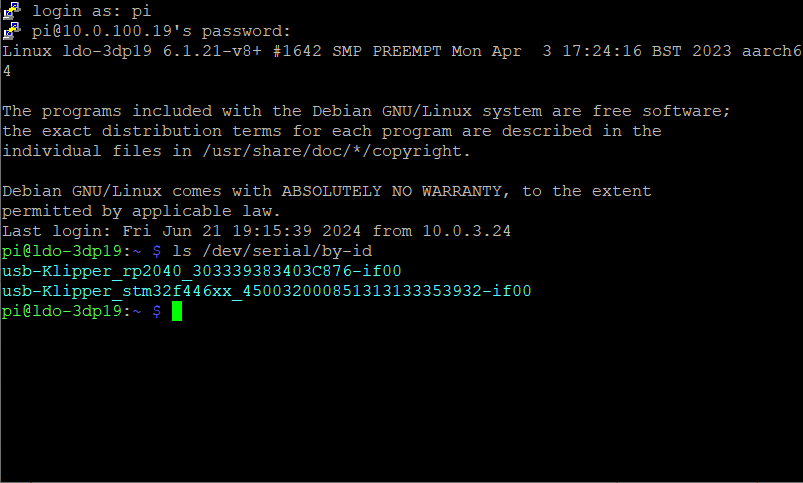
What you're looking at: The screenshot is ls /dev/serial/by-id/, Linux's stable naming for USB serial devices. Each entry carries the MCU family and that chip's unique id, so a board keeps the same path across reboots. These two strings go into printer.cfg and tell Klipper which board is which.
Parts: none.
Do:
ls -l /dev/serial/by-id/
Copy both lines into a scratch file. Identify them by MCU family, not by order:
| Board | Expected ID substring |
|---|---|
| Leviathan V1.1 / V1.2 mainboard | usb-Klipper_stm32f446xx_…-if00 |
| Leviathan V1.3 mainboard | usb-Klipper_stm32h743xx_…-if00 |
| Nitehawk-SB V2 toolboard | usb-Klipper_stm32g0b1xx_…-if00 |
If you are unsure, unplug one board's USB, re-run the command, and see which line disappears. Mainsail's Machine → open a config file → DEVICES → SERIAL → REFRESH shows the same list under Path by ID.
Check
Exactly two Klipper devices, one toolboard stm32g0b1xx and one mainboard stm32f446xx or stm32h743xx, and you know which physical board each belongs to.
Helper: Reads each serial ID off the screen and names its board from the table.
Caution
Rev D+ / LDO: the wiring guide states the toolboard ID will look like usb-Klipper_rp2040_…. It will not. Rev D+ ships the STM32G0B1 Nitehawk-SB V2. Matching rp2040 assigns the mainboard's ID to [mcu nhk] or finds nothing (survey §4.1 ②). The guide also writes stmf446xx; the real string is stm32f446xx. src · src · src
Source: LDO Rev D photo, ls /dev/serial/by-id output · LDO wiring guide § Determining the USB ID of your mainboard and toolboards · LDO Klipper-ID guide · Video: Extras! @0:24:38 (differs: BTT Octopus + separate Raspberry Pi; this kit is a Leviathan with the Pi mounted on it)
Step 12.13 — Identify your Leviathan revision before you build anything¶
(no image — see text)
What you're looking at: Silkscreen is the printed lettering on the board itself. Which processor your Leviathan carries decides three fields of the firmware build: processor model, crystal frequency and where in flash the firmware starts. LDO's own documents disagree, so the board is the only authority.
Parts: none.
Do: Read the revision printed on the mainboard silkscreen, and cross-check it against the ID you just read. They must agree:
| Silkscreen | MCU | Klipper/Katapult clock | Bootloader offset | Serial ID |
|---|---|---|---|---|
| Leviathan V1.1 / V1.2 | STM32F446 | 12 MHz crystal | 32 KiB | stm32f446xx |
| Leviathan V1.3 | STM32H743 | 25 MHz crystal | 128 KiB | stm32h743xx |
Use the row that matches your board in Step 12.14. If the silkscreen and the serial ID disagree, trust the serial ID and stop to ask in #ldo_motors.
Check
You have written down one MCU model, one clock reference and one offset, and you are not going to look at the other row again.
Caution
Rev D+ / LDO: do not resolve this from paperwork. The Rev D wiring guide and the kit config header both say STM32F446 / Leviathan V1.1; the Leviathan repo README was changed on 2025-10-30 from "STM32F446" to "STM32H743", and LDO publishes two setup guides with different menuconfig values. The board itself is the only authority. src · src · src
Source: LDO Leviathan repo · LDO Leviathan V1.2 guide · LDO Leviathan V1.3 guide
Good stopping point · ~15 min since the last one
the bay has been powered once, both MCUs enumerate on /dev/serial/by-id/, both IDs are written down, and you have read the Leviathan's own silkscreen. Nothing has been flashed yet. Do not start a firmware build you cannot finish and flash in the same sitting.
Step 12.14 — Build Klipper firmware for the Leviathan¶
(no image — see text)
What you're looking at: make menuconfig is a text-mode settings screen for the firmware build; it produces out/klipper.bin, the binary the mainboard will run. The bootloader offset is the field that bites: it tells the firmware to start further into flash and leave the first few kilobytes to the bootloader.
Parts: none.
Do: Stop Klipper so it releases the serial ports, then configure. KCONFIG_CONFIG= keeps this board's settings in ~/klipper/config.leviathan instead of the shared .config, so the toolboard build cannot overwrite them:
sudo systemctl stop klipper
cd ~/klipper
make KCONFIG_CONFIG=config.leviathan menuconfig
Set, for an F446 (V1.1/V1.2) board — the first line first, because Clock Reference only appears once it is ticked:
[*] Enable extra low-level configuration options
    Micro-controller Architecture: STMicroelectronics STM32
    Processor model:               STM32F446
    Bootloader offset:             32KiB bootloader
    Clock Reference:               12 MHz crystal
    Communication interface:       USB (on PA11/PA12)
or, for an H743 (V1.3) board:
[*] Enable extra low-level configuration options
    Micro-controller Architecture: STMicroelectronics STM32
    Processor model:               STM32H743
    Bootloader offset:             128KiB bootloader
    Clock Reference:               25 MHz crystal
    Communication interface:       USB (on PA11/PA12)
Q to quit, Y to save. Then:
make KCONFIG_CONFIG=config.leviathan clean
make KCONFIG_CONFIG=config.leviathan
cp config.leviathan ~/printer_data/config/
Check
The screen shows Clock Reference (12 MHz crystal) or 25 MHz before you save. The build ends with Creating hex file out/klipper.bin, and config.leviathan sits beside printer.cfg in Mainsail.
Caution
Rev D+ / LDO: the bootloader offset is dangerous: build with no offset and the Katapult flash wipes the bootloader, recoverable only through DFU at Step 12.16. The clock is the sneaky one: a wrong clock or processor flashes cleanly, then the board never returns as usb-Klipper_…. Double-click SW1 for usb-katapult_…, fix menuconfig, rebuild, re-flash. src · src · src
Source: LDO Leviathan V1.2 guide · LDO Leviathan V1.3 guide · Klipper docs § Building and flashing the micro-controller
Step 12.15 — Flash the Leviathan through Katapult¶
(no image — see text)
What you're looking at: Katapult is the bootloader already on the board: a small program that runs first at power-up and can overwrite the main firmware over USB. Double-clicking RESET makes it stay there instead of handing control to Klipper, and the board re-appears as usb-katapult_….
Parts: none.
Do: The Leviathan ships with Katapult and Klipper already installed, so you normally never touch DFU. Put it into the bootloader by double-clicking SW1, the RESET button, quickly, then confirm and flash:
ls /dev/serial/by-id/*
# expect a line containing:  usb-katapult_stm32f446xx_<id>-if00   (or stm32h743xx)

virtualenv -p python3 ~/katapult-env      # "command not found"? use: python3 -m venv ~/katapult-env
~/katapult-env/bin/pip3 install pyserial greenlet cffi python-can aenum
test -e ~/katapult && (cd ~/katapult && git pull) || (cd ~ && git clone https://github.com/Arksine/katapult)

~/katapult-env/bin/python3 ~/katapult/scripts/flashtool.py \
  -d /dev/serial/by-id/usb-katapult_stm32f446xx_<id>-if00 \
  -f ~/klipper/out/klipper.bin
Check
The tool ends Verification Complete: SHA = <id> then Flash Success, the status LED goes out, and usb-Klipper_stm32f446xx_<id>-if00 is back. Restart Klipper with sudo systemctl start klipper.
The <id> is the MCU's, not the firmware's, so it is the same as before. Flash Success but no usb-Klipper_… line after 30 s: the menuconfig clock or processor was wrong (Step 12.14's Rev D+ callout). Katapult is intact, so double-click SW1 and go back to 12.14; do not go to 12.16.
Source: LDO Leviathan V1.2 guide
Step 12.16 — Recovery only: reinstall Katapult on the Leviathan over DFU¶
(no image — see text)
What you're looking at: DFU is the USB bootloader baked into the STM32 chip at the factory. It cannot be erased, which makes it the recovery route when Katapult itself has been overwritten; holding the two buttons in that order forces the chip into it and dfu-util writes Katapult back.
Parts: none.
Do: Skip this step unless the double-click of SW1 found no usb-katapult_… device. If you must: disconnect every other USB device from the Pi, press SW2 and SW1 together, release SW1 first, then SW2, and confirm lsusb shows ID 0483:df11 STMicroelectronics STM Device in DFU Mode. Then build Katapult:
sudo apt install dfu-util
cd ~/katapult
make menuconfig
with the same processor/clock/offset row you wrote down — Micro-controller Architecture: STMicroelectronics STM32, Processor model, Clock Reference (tick Enable extra low-level configuration options first if the line is absent), Application start offset = the offset you wrote down, Communication interface: USB (on PA11/PA12), Support bootloader entry on rapid double click of reset button, Enable Status LED, Status LED GPIO Pin: PE1. Q, Y, then flash it:
make clean && make
sudo dfu-util -d 0483:df11 -a 0 -s 0x08000000:mass-erase:force -D out/katapult.bin
Then go back to Step 12.14.
Check
after a press of SW1, lsusb shows ID 1d50:6177 OpenMoko, Inc. stm32f446xx and /dev/serial/by-id/ gains a usb-katapult_… entry.
`mass-erase
force` wipes the board.** It removes Klipper too, so you must build and flash again afterwards or the mainboard will not enumerate as a Klipper device at all. src
Source: LDO Leviathan V1.2 guide
Good stopping point · ~20 min since the last one
the Leviathan is running your own Klipper build and still enumerates by its serial ID. Never stop between make and the flash: out/ is shared between the two boards, so a built binary that never reaches its board is rebuilt from config.leviathan before you go on — one make, but do it before touching the toolboard.
Step 12.17 — Build Klipper firmware for the Nitehawk-SB V2¶
What you're looking at: The screenshot is LDO's own make menuconfig screen for the toolboard: the same tool as step 12.14, but a different chip, offset and clock. The !PC6 entry drives the ACT LED pin low at MCU start-up, which LDO documents as the LED coming on (verify on bench).
Parts: none.
Do: Same pattern as 12.14, with the toolboard's own settings file:
sudo systemctl stop klipper
cd ~/klipper
make KCONFIG_CONFIG=config.nitehawk menuconfig
Set exactly:
[*] Enable extra low-level configuration options
    Micro-controller Architecture: STMicroelectronics STM32
    Processor model:               STM32G0B1
    Bootloader offset:             8KiB bootloader
    Clock Reference:               12 MHz crystal
    Communication interface:       USB (on PA11/PA12)
[*] Optimize stepper code for 'step on both edges'
    (!PC6) GPIO pins to set at micro-controller startup
Q, Y, then:
make KCONFIG_CONFIG=config.nitehawk clean
make KCONFIG_CONFIG=config.nitehawk
cp config.nitehawk ~/printer_data/config/
Check
~/klipper/out/klipper.bin exists and is newer than the Leviathan build you just flashed, and the screen showed Clock Reference (12 MHz crystal) before you saved.
Caution
Rev D+ / LDO: this is the deviation that defines Rev D+. The Nitehawk-SB V1 is an RP2040 and takes a different menuconfig; the V2 is an STM32G0B1, and choosing RP2040 produces a binary the board cannot run. The 8 KiB bootloader offset is mandatory: build with no offset and the Katapult flash erases the bootloader. src · menuconfig screenshot
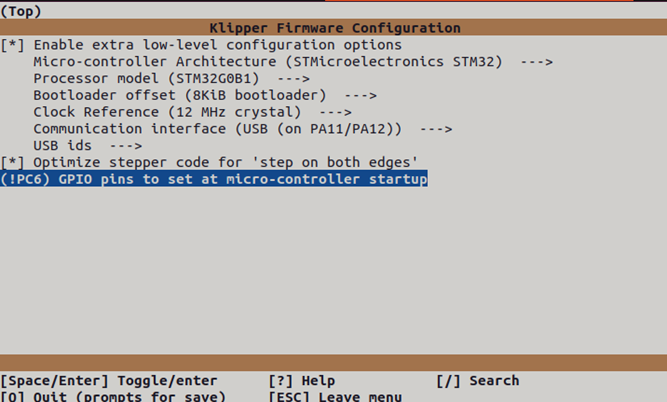
Caution
Rev D+ / LDO: the ACT LED: !PC6 turns it on at MCU start-up, but the kit config's [output_pin pcb_led] pin: !nhk:PC6 with default value: 0 may drive the pin the other way once Klipper connects, so the LED could go dark at Ready (verify on bench). LDO's own nitehawk-sbv2.cfg uses pin: nhk:PC6; drop the ! if you want it lit. src
Source: Nitehawk-SB V2 doc § Compiling Klipper firmware · Nitehawk-SB-V2 make_menuconfig.png

Step 12.18 — Flash the Nitehawk with make flash¶
(no image — see text)
What you're looking at: make flash builds nothing new; it hands the binary you just compiled to the board's Katapult bootloader over the serial path you name. Same operation as step 12.15, wrapped up so no buttons are involved.
Parts: none.
Do: The recommended path needs no buttons at all:
cd ~/klipper
sudo service klipper stop
make KCONFIG_CONFIG=config.nitehawk flash FLASH_DEVICE=/dev/serial/by-id/usb-Klipper_stm32g0b1xx_<id>-if00
sudo service klipper start
Use the stm32g0b1xx ID you recorded in Step 12.12. (Every future toolboard update is this same line after make KCONFIG_CONFIG=config.nitehawk; the Leviathan's is its own flashtool.py line after make KCONFIG_CONFIG=config.leviathan.)
Check
the flash completes without error, and ls /dev/serial/by-id/ still shows usb-Klipper_stm32g0b1xx_<id>-if00. If the board does not come back, reboot the printer before assuming anything is broken.
Source: Nitehawk-SB V2 doc § Uploading Klipper via make flash
Step 12.19 — Fallback: flash the Nitehawk through Katapult¶
What you're looking at: The photo shows the toolboard's two buttons and five status LEDs. RESET restarts the chip; BOOT0 held across a reset forces the factory DFU bootloader instead. ACT, the fourth LED from the left, blinks slowly when Katapult is waiting for a flash.
Parts: none.
Do: Only if make flash failed. Move the toolhead to the front and open the cover so you can reach RESET and BOOT0 and see the five LEDs: 3V3, 24V, HE0, ACT, HUB. Double-click RESET quickly; the ACT LED blinks slowly. Then:
ls /dev/serial/by-id/
# expect: usb-katapult_stm32g0b1xx_<id>-if00

~/katapult-env/bin/python3 ~/katapult/scripts/flashtool.py \
  -d /dev/serial/by-id/usb-katapult_stm32g0b1xx_<id>-if00
If there is no usb-katapult_… line, Katapult itself is missing: hold RESET and BOOT0 together, release RESET first then BOOT0, confirm lsusb shows ID 0483:df11 … STM Device in DFU mode, then build Katapult:
sudo apt install dfu-util
cd ~/katapult
make menuconfig
with Micro-controller Architecture STMicroelectronics STM32 / Processor model STM32G0B1 / Clock Reference 12 MHz crystal (tick "Enable extra low-level configuration options" first if the line is absent) / Communication interface USB (on PA11/PA12) / Application start offset 8KiB offset / Support bootloader entry on rapid double click of reset button / Enable Status LED / Status LED GPIO Pin (PC6) — the second screenshot above — then Q, Y and:
make clean && make
sudo dfu-util -a 0 -s 0x08000000:leave -D ~/katapult/out/katapult.bin
Then repeat Steps 12.17–12.18.
Check
ACT blinks slowly in Katapult, and usb-Klipper_stm32g0b1xx_<id>-if00 is back after flashing.
Caution
Installing Katapult this way erases the Klipper firmware. You must re-flash Klipper afterwards. src · button/LED photo · Katapult menuconfig screenshot
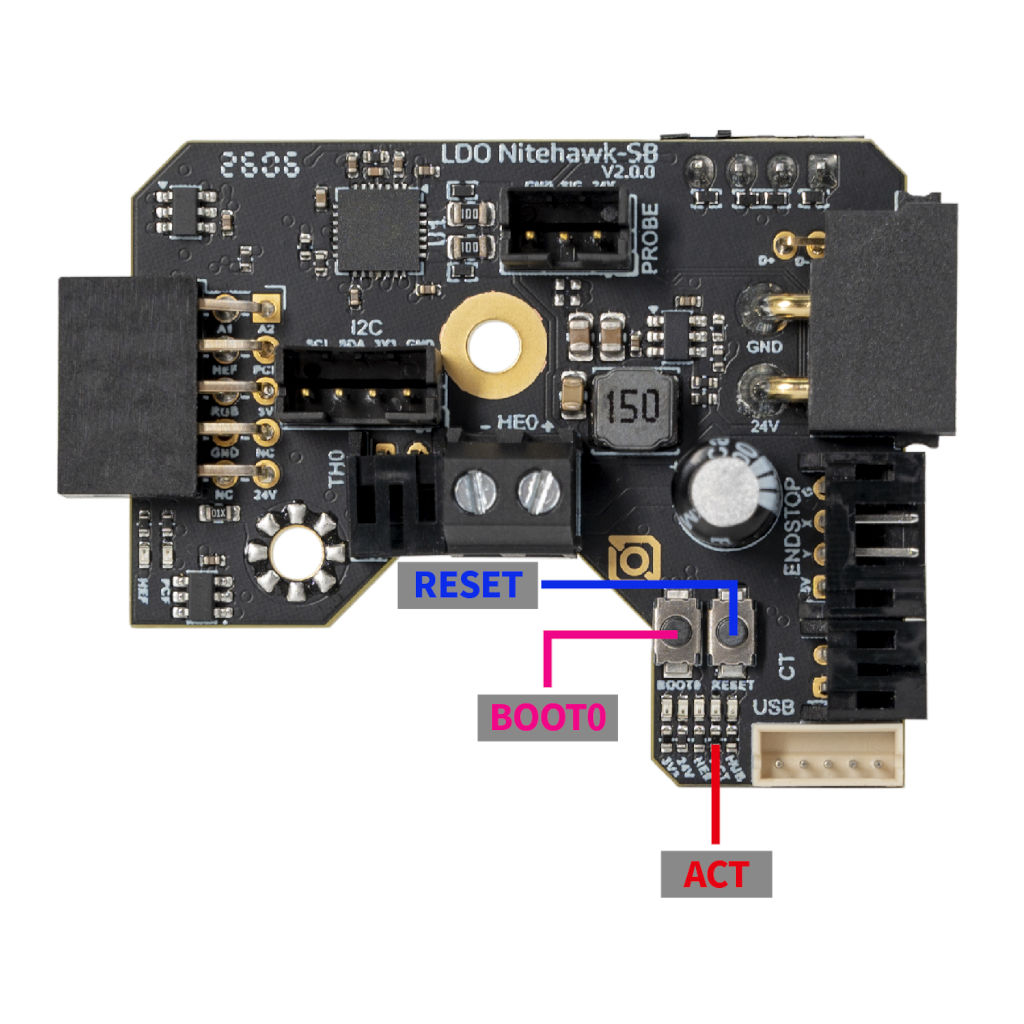
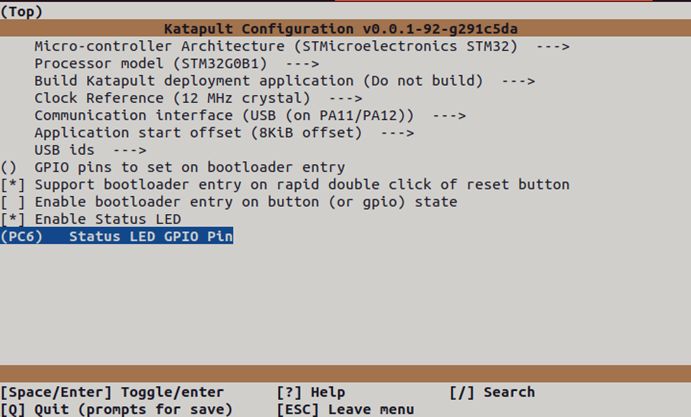
Source: Nitehawk-SB V2 doc § Installing the Katapult bootloader · Nitehawk-SB V2 doc § Uploading Klipper via Katapult · Nitehawk-SB-V2 reset_boot_buttons.jpg

Step 12.20 — Re-read and record both serial paths¶
(no image — see text)
What you're looking at: Both boards should now be back under their usb-Klipper_… names with no usb-katapult_… left; a board still showing katapult never actually received its firmware. Mainsail's Machine → DEVICES → SERIAL panel shows the same list from the browser.
Parts: none.
Do:
ls /dev/serial/by-id/
Copy both full paths — including the -if00 suffix — somewhere you can paste from. You need them twice in the next few steps.
Check
Exactly two lines, both containing usb-Klipper_, one stm32g0b1xx and one stm32f446xx/stm32h743xx. No katapult entries left.
Caution
If ls /dev/serial/by-id/* comes back empty on a machine that was working a moment ago, that is the first thing to investigate — a known udev failure mode on older Pi OS releases. On MainsailOS 3.x you should not hit it; if you do, check dmesg | tail for USB enumeration errors before touching the config (survey §4.3). src
Source: LDO Klipper-ID guide · LDO wiring guide § Determining the USB ID of your mainboard and toolboards
Good stopping point · ~20 min since the last one
both boards flashed, both serial paths re-read and recorded, and both come back after a reboot. This is the safest stopping point in the chapter: hardware and firmware agree and nothing is edited yet.
Step 12.21 — Download the correct config file¶
(no image of your own printer yet — simulated printer: your numbers differ)
What you're looking at: printer.cfg is the single text file that describes this machine to Klipper: which pin drives which motor, what shape the bed is, what every heater, sensor and fan is. LDO publishes one per kit variant and the -sbv2 suffix is the Rev D+ one.
Parts: none.
Do: Fetch leviathan-printer-rev-d-sbv2.cfg onto the Pi as printer.cfg, from the pinned commit. A GitHub page is not the file: "Save as" on the blob/ page gives you HTML, so use the raw URL over SSH:
wget -O ~/printer_data/config/printer.cfg \
  https://raw.githubusercontent.com/MotorDynamicsLab/LDOVoron2/667521d/Firmware/leviathan-printer-rev-d-sbv2.cfg
grep -c 'nhk:PB8' ~/printer_data/config/printer.cfg
grep -c gpio ~/printer_data/config/printer.cfg
Check
The first grep prints 1 and the second 0, and the file appears as printer.cfg in Mainsail's Machine page.
A 0 then 20 means you fetched the Rev D (RP2040) file: re-run the wget with the -sbv2 name.
Caution
Rev D+ / LDO: the Rev D wiring guide's "pre-made configuration file" link points at leviathan-printer-rev-d.cfg, the RP2040 toolboard config: every nhk: pin in it is wrong for your board, and it defines a [temperature_sensor nh_temp] on a pin the V2 does not have. Do not add that section back (survey §4.1 ①, §4.3). src
Source: LDO Rev D photo, Mainsail config devices · leviathan-printer-rev-d-sbv2.cfg · LDOVoron2 Firmware/README.md · Video: Part 9 @2:35:54 (differs: BTT Octopus + separate Raspberry Pi; this kit is a Leviathan with the Pi mounted on it)
Step 12.22 — Add the Mainsail include at the top of printer.cfg¶
(no image of your own printer yet — simulated printer: your numbers differ)
What you're looking at: An [include] line pulls another config file in at that point. mainsail.cfg is already on the card and supplies the sections and macros the web interface needs: virtual SD card, display status, pause, resume, cancel.
Parts: none.
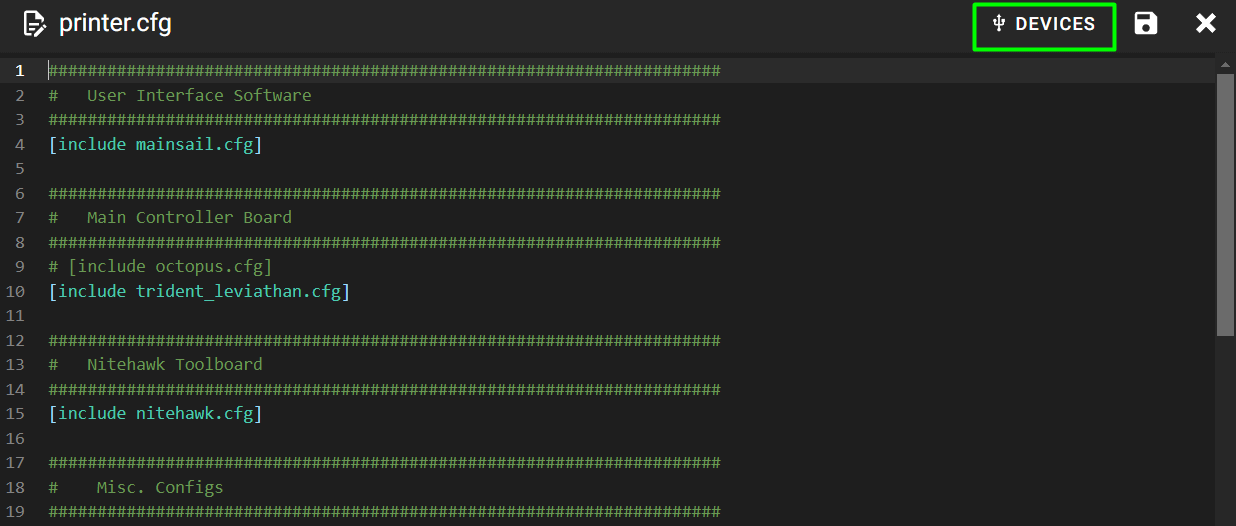
Do: In Mainsail, Machine → open printer.cfg in the editor. It is already there under the right name, so no upload and no rename. Add one line at the very top, above the header comments:
[include mainsail.cfg]
Check
printer.cfg sits next to mainsail.cfg and moonraker.conf in the config list, and line 1 is the include.
Why: Mainsail needs [virtual_sdcard], [display_status], [pause_resume] and the PAUSE/RESUME/CANCEL_PRINT macros. mainsail.cfg is already on the SD card and bundles all six. Do not edit mainsail.cfg itself — it is a read-only include; override it later with a _CLIENT_VARIABLE macro in printer.cfg if you need to. src
Source: Mainsail mainsail.cfg · leviathan-printer-rev-d-sbv2.cfg
Step 12.23 — Paste the two serial paths¶
(no image — see text)
What you're looking at: [mcu] is the mainboard and [mcu nhk] is the toolboard; every pin starting nhk: is resolved against the second one. Klipper checks each pin name against the board it is sent to, so swapping the paths stops Klipper with a pin-name error rather than driving the wrong pins.
Parts: none.
Do: Replace both {REPLACE WITH YOUR SERIAL} placeholders. [mcu] is the mainboard; [mcu nhk] is the toolboard.
[mcu]
##  Obtain definition by "ls -l /dev/serial/by-id/" then unplug to verify
##--------------------------------------------------------------------
serial: /dev/serial/by-id/usb-Klipper_stm32f446xx_XXXXXXXXXXXX-if00   # CHANGED — Leviathan; stm32h743xx if V1.3
restart_method: command
##--------------------------------------------------------------------

[mcu nhk]
##  Obtain definition by "ls -l /dev/serial/by-id/" then unplug to verify
##--------------------------------------------------------------------
serial: /dev/serial/by-id/usb-Klipper_stm32g0b1xx_XXXXXXXXXXXX-if00   # CHANGED — Nitehawk-SB V2, NOT rp2040
restart_method: command
##--------------------------------------------------------------------
Check
the two paths are different from each other, both start /dev/serial/by-id/usb-Klipper_, and both end -if00.
Caution
Rev D+ / LDO: swapping these two is the most common Rev D+ mistake: the guide primes you to look for rp2040, and there isn't one. [mcu nhk] gets the stm32g0b1xx path. At Step 12.37: Pin 'PG0' is not a valid pin name on mcu 'mcu' means the two serial paths are swapped (the toolboard has no port G); Pin 'gpio23' is not a valid pin name on mcu 'nhk' means you loaded leviathan-printer-rev-d.cfg, not the -sbv2 file. src · src
Source: leviathan-printer-rev-d-sbv2.cfg · LDO wiring guide § Klipper configuration
Good stopping point · ~15 min since the last one
printer.cfg is the -sbv2 file with the Mainsail include and both real serial paths pasted in. Klipper connects to both MCUs. Do not stop with only one serial path filled in; Klipper will not start.
Step 12.24 — 350 mm: [stepper_x] and [stepper_y]¶
(no image of your own printer yet — simulated printer: your numbers differ)
What you're looking at: A [stepper_x] section describes one axis motor and its limit switch: how far one revolution moves the axis, how finely the driver subdivides a step, which pin the endstop is on, and where the axis ends. All three build sizes ship commented out.
Parts: none.
Do: In both [stepper_x] and [stepper_y], uncomment the 350 pair and leave the 250 and 300 pairs commented. [stepper_x] after editing, with [stepper_y] identical below the header:
##  B Stepper - Left
##  Connected to HV STEPPER 0
##  Endstop connected to X-ENDSTOP
[stepper_x]
step_pin: PB10
dir_pin: !PB11
enable_pin: !PG0
rotation_distance: 40
microsteps: 32
full_steps_per_rotation:400  #set to 200 for 1.8 degree stepper
endstop_pin: PC1
position_min: 0
##--------------------------------------------------------------------

##  Uncomment below for 250mm build
#position_endstop: 250
#position_max: 250

##  Uncomment for 300mm build
#position_endstop: 300
#position_max: 300

##  Uncomment for 350mm build
position_endstop: 350        # CHANGED — uncommented for 350
position_max: 350            # CHANGED — uncommented for 350

##--------------------------------------------------------------------
homing_speed: 25   #Max 100
homing_retract_dist: 5
homing_positive_dir: true
Check
Exactly two live position_endstop/position_max pairs in the file's X/Y sections, one per stepper.
Klipper's parser is non-strict: a second live position_max in the same section is silently accepted and the last one wins.
Caution
Rev D+ / LDO: the kit config ships with every build size commented out. This is the first of six places that need the 350 lines uncommented (survey §4.4 #15). src
Source: leviathan-printer-rev-d-sbv2.cfg · Klipper docs § stepper
Step 12.25 — 350 mm: [stepper_z]¶
(no image — see text)
What you're looking at: position_max is how high the gantry may be driven. It is 330 rather than 350 because the gantry runs out of frame before it runs out of nominal build volume. position_endstop here is a placeholder: Ch 13 measures the real value and SAVE_CONFIG writes it.
Parts: none.
Do: Uncomment the 350 line only. Z max is 330, not 350: the gantry cannot reach the last 20 mm.
position_endstop: -0.5
##--------------------------------------------------------------------

##  Uncomment below for 250mm build
#position_max: 230

##  Uncomment below for 300mm build
#position_max: 280

##  Uncomment below for 350mm build
position_max: 330            # CHANGED — uncommented for 350

##--------------------------------------------------------------------
position_min: -5
homing_speed: 8
second_homing_speed: 3
homing_retract_dist: 3
Check
position_max: 330 is live; position_endstop: -0.5 is untouched, the placeholder Z_ENDSTOP_CALIBRATE overwrites in Ch 13 via SAVE_CONFIG.
Source: leviathan-printer-rev-d-sbv2.cfg · Klipper docs § stepper
Step 12.26 — 350 mm: [quad_gantry_level]¶
(no image — see text)
What you're looking at: QGL, quad gantry level, probes four points and drives each of the four Z motors independently until the gantry is parallel to the bed. gantry_corners says where the gantry's pivots are and points where to probe, both specific to a 350.
Parts: none.
Do: Uncomment the 350 gantry_corners and points blocks. Both keys need their continuation lines uncommented too, and the indentation must survive.
[quad_gantry_level]

#--------------------------------------------------------------------
##  Gantry Corners for 250mm Build
##  Uncomment for 250mm build
#gantry_corners:
#   -60,-10
#   310, 320
##  Probe points
#points:
#   50,25
#   50,175
#   200,175
#   200,25

##  Gantry Corners for 300mm Build
##  Uncomment for 300mm build
#gantry_corners:
#   -60,-10
#   360,370
##  Probe points
#points:
#   50,25
#   50,225
#   250,225
#   250,25

##  Gantry Corners for 350mm Build
##  Uncomment for 350mm build
gantry_corners:              # CHANGED — uncommented for 350
   -60,-10                   # CHANGED
   410,420                   # CHANGED
##  Probe points
points:                      # CHANGED — uncommented for 350
   50,25                     # CHANGED
   50,275                    # CHANGED
   300,275                   # CHANGED
   300,25                    # CHANGED

#--------------------------------------------------------------------
speed: 100
horizontal_move_z: 10
retries: 5
retry_tolerance: 0.0075
max_adjust: 10
Check
gantry_corners has exactly two coordinate lines and points exactly four, all indented by three spaces.
Klipper errors loudly if a continuation line loses its indent, so a bad edit here fails at Step 12.37 rather than silently.
Source: leviathan-printer-rev-d-sbv2.cfg · Klipper docs § quad_gantry_level · Video: Part 9 @1:24:59
Step 12.27 — 350 mm: resonance probe point and the G32 homing end position¶
(no image — see text)
What you're looking at: [resonance_tester] names the spot on the bed where Ch 14's accelerometer measurements are taken. G32 is the macro that homes, runs QGL and re-homes, and its final move parks the toolhead over bed centre. Both carry hard-coded coordinates that only make sense for one build size.
Parts: none.
Do: Two more 350 blocks that the survey's checklist does not mention. In [resonance_tester]:
[resonance_tester]
accel_chip: adxl345
accel_per_hz: 100
sweeping_accel: 400
sweeping_period: 0
##--------------------------------------------------------------------
## Uncomment below for 350mm build
probe_points:                # CHANGED — uncommented for 350
    175, 175, 20             # CHANGED
##--------------------------------------------------------------------
and in [gcode_macro G32]:
[gcode_macro G32]
gcode:
    SAVE_GCODE_STATE NAME=STATE_G32
    G90
    G28
    QUAD_GANTRY_LEVEL
    G28
    ##  Uncomment for for your size printer:
    #--------------------------------------------------------------------
    ##  Uncomment for 350mm build
    G0 X175 Y175 Z30 F3600   ; CHANGED — uncommented for 350
    #--------------------------------------------------------------------
    RESTORE_GCODE_STATE NAME=STATE_G32
Check
Count the live lines; each command prints one number, and the still-commented 250/300 blocks do not count:
cd ~/printer_data/config
grep -c '^position_max: 350' printer.cfg        # 2  (stepper_x, stepper_y)
grep -c '^position_max: 330' printer.cfg        # 1  (stepper_z)
grep -c '^points:' printer.cfg                  # 1  (quad_gantry_level)
grep -c '^probe_points:' printer.cfg            # 1  (resonance_tester)
grep -c '^    G0 X175 Y175 Z30' printer.cfg     # 1  (G32)
Expect 2 / 1 / 1 / 1 / 1. A 0 is a block still commented; a 2 where 1 is expected is a second size uncommented as well.
Helper: Reads each count off the screen against the expected 2, 1, 1, 1, 1.
Naming note: the config header calls this "Homing end position — [gcode_macro G32] section". This kit does not use a [homing_override] block; homing behaviour lives in [safe_z_home] (Step 12.33) and this G32 macro. Do not add a [homing_override] — an incorrect one drives the nozzle into the bed. src
Source: leviathan-printer-rev-d-sbv2.cfg · leviathan-printer-rev-d-sbv2.cfg · Klipper docs § resonance_tester
Step 12.28 — Verify the 0.9° A/B motor setting¶
(no image — see text)
What you're looking at: full_steps_per_rotation is how many full steps the motor takes per revolution. A/B motors are 0.9° units, 400 steps; the Z and extruder motors are 1.8° units at 200. Nothing warns you if this is wrong: every X and Y dimension comes out doubled or halved.
Parts: none.
Do: Confirm, do not change, that [stepper_x] and [stepper_y] both read:
full_steps_per_rotation:400 #set to 200 for 1.8 degree stepper
and that [extruder] reads full_steps_per_rotation: 200.
Check
X/Y = 400, extruder = 200, and none of the four [stepper_z*] sections has a full_steps_per_rotation line; they inherit the 200 default.
Why: the Rev D+ A/B motors are LDO-42STH48-2004MAH(VRN), 0.9° — 400 full steps per revolution. The Z motors (LDO-42STH48-2004AC(VRN)) and the extruder motor (LDO-36STH20-1004AHG(VRN)) are 1.8°. LDO already sets this correctly in the -sbv2 config; the value is on this checklist only because it is the one thing that will silently halve or double every X/Y dimension if someone "fixes" it. src
Source: leviathan-printer-rev-d-sbv2.cfg · LDO Rev D 350 BOM
Good stopping point · ~15 min since the last one
every 350 mm dimension is set (X/Y/Z limits, QGL corners, resonance point, G32 end position) and the 0.9° A/B motor setting verified. SAVE & RESTART completes cleanly.
Step 12.29 — Probe: Omron active, Klicky written but commented¶
(no image — see text)
What you're looking at: A [probe] section describes what the machine uses to measure bed height. This kit has two: the Omron inductive probe, for gantry levelling only, and the Klicky dockable microswitch. Klipper allows exactly one live [probe], so the unused one is parked as commented text.
Parts: none.
Do: The kit ships both probes. Build stock: Omron inductive for QGL only, LDO nozzle probe for Z0, Klicky parts bagged. Replace the [probe] section with the following, which keeps LDO's live values and parks a Klicky block beside them:
[probe]
##  Inductive Probe (Omron) — ACTIVE
##  Connected to PROBE on the Nitehawk-SB V2 (the Leviathan's Z-PROBE header stays empty)
##  This probe is not used for Z height, only Quad Gantry Leveling
pin: nhk:PC15
x_offset: 0
y_offset: 25.0
z_offset: 0
speed: 10.0
samples: 3
samples_result: median
sample_retract_dist: 3.0
samples_tolerance: 0.006
samples_tolerance_retries: 3

##  ---- Klicky alternative — NOT ACTIVE ----------------------------------
##  Comment out the [probe] block above before uncommenting this one.
##  Klicky also needs the klicky-probe macro set, a printed dock, and its own
##  attach/dock sequence inside QUAD_GANTRY_LEVEL. On the toolhead PCB the
##  Klicky cable goes to the same PROBE port, but the 24V pin is not connected.
##  Confirm the sense of the switch with QUERY_PROBE before ANY Z move: if it
##  reports TRIGGERED with the probe off the dock, add a leading "!" to the pin.
#[probe]
#pin: ^nhk:PC15             # (verify on bench) — microswitch needs a pull-up
#x_offset: 0                # (verify on bench) — depends on your dock/mount
#y_offset: 19.75            # (verify on bench) — klicky default, measure yours
#z_offset: 6.42             # (verify on bench) — set by PROBE_CALIBRATE
#speed: 10.0
#samples: 3
#samples_result: median
#sample_retract_dist: 3.0
#samples_tolerance: 0.006
#samples_tolerance_retries: 3
Check
exactly one live [probe] section. grep -c '^\[probe\]' printer.cfg returns 1.
Caution
Rev D+ / LDO: the PROBE port on the Nitehawk-SB V2 is JST-PH2.0, not the JST-XH2.5 the wiring guide describes; a pigtail crimped to XH2.5 will not fit (survey §4.1 ③). The fibreglass tape goes on the front and sides of the Omron only, never the back or bottom, or it will not sense. src · src
Source: leviathan-printer-rev-d-sbv2.cfg · Klipper docs § probe · Nitehawk-SB V2 doc § Port and pin definitions · Video: More Extras! @3:24:00 (differs: Euclid probe (Klicky fitted later, Part 11); this kit uses the Omron inductive probe + LDO nozzle probe, Klicky bagged)
Step 12.30 — Hotend: E3D Revo HF¶
(no image — see text)
What you're looking at: The [extruder] section carries both the hotend heater and its temperature sensor. sensor_type names the thermistor's resistance curve and pullup_resistor the fixed resistor on the board it is measured against. Get either wrong and the printer reads a plausible but false temperature.
Parts: none.
Do: Confirm the [extruder] heater and sensor block matches your hotend. For the kit's Revo HF, LDO's shipped values are already correct, so verify rather than edit:
heater_pin: nhk:PA7
## Check what thermistor type you have.
sensor_type: ATC Semitec 104NT-4-R025H42G   # correct for the Revo 60 W 104NT HeaterCore
sensor_pin: nhk:PB12
pullup_resistor: 2200                        # Nitehawk TH0 port has 2k2 pull-ups
min_temp: 10
max_temp: 270                                # Revo HF core is rated 300 C; 270 is LDO's cap
max_power: 1.0
min_extrude_temp: 170
control = pid
pid_kp = 26.213
pid_ki = 1.304
pid_kd = 131.721
Check
sensor_type reads ATC Semitec 104NT-4-R025H42G and pullup_resistor: 2200 is present. Leave the PID values alone; PID_CALIBRATE HEATER=extruder TARGET=245 in Ch 13 replaces them.
Sourcing: E3D publishes the Revo 60 W 104NT HeaterCore as Thermistor Type: Semitec 104NT-4-R025H42G, Klipper Setting: "ATC Semitec 104NT-4-R025H42G", 60W, Max Printing Temperature: 300°C. Use the Revo's integrated thermistor lead into TH0; the loose Semitec 104NT in the kit bag is a spare. src
Caution
Rev D+ / LDO: the wiring guide says the TH0 connector is "JST-XH2.5 two pin". On the V2 board it is JST-PH2.0 (survey §4.1 ③). The heater screw terminal and the E0508 ferrule spec are unchanged. If you fitted a Rapido HF instead of the Revo, its thermistor is a different part — re-check sensor_type against its datasheet before power-up. src
Source: leviathan-printer-rev-d-sbv2.cfg · Klipper docs § extruder · E3D Revo 60 W heatercore / 104NT thermistor
Step 12.31 — Bed heater and chamber sensor¶
(no image — see text)
What you're looking at: [heater_bed] is the SSR output and the bed thermistor you wired in Ch 10; [temperature_sensor chamber_temp] is a sensor with no heater attached, so it only reports. max_power: 0.6 deliberately caps how hard the 355 mm heat pad is driven.
Parts: none.
Do: Verify, do not edit:
[heater_bed]
##  SSR Pin - HEATBED
##  Thermistor - TH1
heater_pin: PG11
sensor_type: ATC Semitec 104NT-4-R025H42G
sensor_pin: PA2
pullup_resistor: 2200                  # Leviathan thermistor ports are 2k2
max_power: 0.6
min_temp: 0
max_temp: 120
control: pid
pid_kp: 58.437
pid_ki: 2.347
pid_kd: 363.769

[temperature_sensor chamber_temp]
## Chamber Temperature — plugs into the CT port on the toolhead PCB
sensor_type: ATC Semitec 104NT-4-R025H42G
sensor_pin: nhk:PB2
min_temp: 0
max_temp: 100
gcode_id: chamber_th
Check
After Step 12.37, Mainsail's temperature panel shows bed and chamber within ~2 °C of room temperature.
If the chamber reads wrong while the bed and hotend read correctly, suspect the CT port's pull-up: LDO's board-level config for that port specifies pullup_resistor: 4700, Klipper's default, which is why the kit config omits the line. Add an explicit value only if the reading is wrong.
Note: max_power: 0.6 on the bed is deliberate — a 355×355 heatpad at full power warps the plate. Do not raise it. The Leviathan README specifies "4x Thermistor ports with 2k2 ohm pullup resistors", which is where the bed's 2200 comes from. src · src
Source: leviathan-printer-rev-d-sbv2.cfg · leviathan-printer-rev-d-sbv2.cfg · Klipper docs § heater_bed · Nitehawk-SB V2 nitehawk-sbv2.cfg
Step 12.32 — Fans and lighting: Nevermore, COB strips, bay fans¶
What you're looking at: Klipper has four fan section types and the difference is the point of this step: [fan] is the slicer-controlled part-cooling fan, [heater_fan] runs automatically whenever its heater is on, [controller_fan] follows the steppers and bed, and [fan_generic] is one a macro can command directly.
Parts: none.
Do: The kit's mainboard fan/LED mapping, per the wiring guide's own table, is: PCB Fan → FAN2/PF7, LED Strip → LED-Strip/PE6, Filter Fan → FAN3/PF9. Note what LDO's config calls FAN3 and what is actually plugged into it. Edit as follows:
[fan]
##  Print Cooling Fan - FAN0 (toolhead, 5015 blower on fan adapter P4)
pin: nhk:PA15
##tachometer_pin: nhk:PD2
kick_start_time: 0.5
off_below: 0.10

[heater_fan hotend_fan]
##  Hotend Fan - FAN1 (toolhead, 4010 axial on fan adapter P2)
pin: nhk:PD0
#tachometer_pin: nhk:PD1
max_power: 1.0
kick_start_time: 0.5
heater: extruder
heater_temp: 50.0

[controller_fan controller_fan]
##  Electronics bay fans — 2x 6020 joined by the 3x2 splicer PCB. FAN2 / "PCB FAN"
pin: PF7
##tachometer_pin: PF6
kick_start_time: 0.5
heater: heater_bed

##  ---- REPLACES LDO's [heater_fan exhaust_fan] ---------------------------
##  FAN3 is labelled "FILTER FAN" in the harness and feeds the Nevermore
##  Micro V5 Duo. LDO's stock config declares it as a [heater_fan] slaved to
##  the bed at 60 C, which cannot be commanded from the slicer or a macro.
##  fan_generic lets PRINT_START run it for the materials that need filtering
##  and PRINT_END run it on for a scrub afterwards (the macros come at 12.36).
[fan_generic nevermore]                # CHANGED — was [heater_fan exhaust_fan]
pin: PF9
max_power: 1.0
shutdown_speed: 0.0
kick_start_time: 5.0

##  ---- LDO stock, kept for reference — NOT ACTIVE -----------------------
#[heater_fan exhaust_fan]
#pin: PF9
#max_power: 1.0
#shutdown_speed: 0.0
#kick_start_time: 5.0
#heater: heater_bed
#heater_temp: 60
#fan_speed: 1.0

## Chamber Lighting — 2x COB strips joined by the 2x3 splitter PCB, LED-STRIP port
[output_pin caselight]
pin: PE6
pwm: true
hardware_pwm: False
value: 0.20                   # startup brightness
shutdown_value: 0
#value:1                      # CHANGED — commented out; see note below
cycle_time: 0.00025
Check
grep -c '^\[heater_fan exhaust_fan\]' printer.cfg returns 0, grep -c '^\[fan_generic nevermore\]' printer.cfg returns 1, and [output_pin caselight] contains exactly one live value: line.
Why the caselight edit: LDO's stanza declares value twice — value: 0.20 and then value:1. Klipper builds its parser with RawConfigParser(strict=False), so duplicate keys are accepted silently and the last one wins: the COB strips come up at full brightness on every boot, and the 0.20 you thought you set is dead text. The same duplicate is present in LDO's Leviathan-repo configs, so it is not a transcription error in your file. src
Caution
Rev D+ / LDO: the stock exhaust-filter fan is not included in the Rev D kit, so nothing else wants FAN3. The Nevermore Micro V5 Duo is built in Ch 11 and is the only thing on that port. src
Source: LDO Rev D photo S7 fans wired · leviathan-printer-rev-d-sbv2.cfg · Klipper docs § fan · LDO wiring guide § Connecting the fans and the LED strip · Video: Extras! @4:00:25
Good stopping point · ~15 min since the last one
probe, hotend, bed, chamber sensor, fans and lighting are all declared and the config still restarts without error. Klipper is bootable; the machine has still never moved.
Step 12.33 — Z endstop: leave safe_z_home deliberately unreachable¶
(no image — see text)
What you're looking at: [safe_z_home] is the XY position the toolhead moves to before homing Z, which here must be directly over the nozzle-probe pin. The shipped -10,-10 sits outside the machine's travel limits on purpose, so Klipper refuses the move rather than guessing.
Parts: none.
Do: Do not guess the nozzle-probe coordinates. Leave the section as LDO ships it and add a marker:
[safe_z_home]
##  XY Location of the Z Endstop Switch
##  Update -10,-10 to the XY coordinates of your endstop pin
##  after going through the "Z Endstop Pin Location Definition" step.
home_xy_position:-10,-10      # TODO Ch 13 — measured on the machine, NOT a 350 preset
speed:100
z_hop:10
Check
home_xy_position is still -10,-10, and you understand that G28 Z will fail in Ch 13 with "Move out of range" until you replace it.
Why leave it broken: -10,-10 is outside position_min: 0 for both X and Y, so Klipper refuses the move rather than attempting it. That refusal is the safety interlock. Substituting a plausible-looking value — bed centre, say — makes G28 Z drive the nozzle down at a spot where there is no pin, into the build plate. The LDO nozzle probe's real XY location is read off the machine during the startup wizard's Z Endstop page in Ch 13. src · src
Source: leviathan-printer-rev-d-sbv2.cfg · Klipper docs § safe_z_home · Voron startup wizard
Step 12.34 — Add a [bed_mesh] section¶
(no image — see text)
What you're looking at: A bed mesh is a grid of probed heights Klipper applies as a small Z correction while printing, compensating for a bed that is not flat. mesh_min/mesh_max are probe coordinates, not nozzle coordinates, and zero_reference_position pins the mesh to one point.
Parts: none.
Do: There is no [bed_mesh] anywhere in the LDO config. Add this block anywhere above the macros; next to [quad_gantry_level] reads well:
#####################################################################
#   Bed Mesh  — ADDED, not present in the LDO config
#####################################################################

[bed_mesh]
speed: 300
horizontal_move_z: 10
##  mesh_min / mesh_max are PROBE coordinates, not nozzle coordinates.
##  The Omron sits at y_offset +25, so the toolhead goes to (X, Y-25):
##  mesh_min Y 40 -> toolhead Y 15;  mesh_max Y 310 -> toolhead Y 285. Both legal.
##  40/310 is the Voron reference inset for a 350 (keeps probe points off the bed clips).
mesh_min: 40, 40
mesh_max: 310, 310
probe_count: 7, 7
algorithm: bicubic
##  Z0 comes from the nozzle-probe endstop, and [probe] z_offset is 0 because
##  the Omron is a QGL-only probe. Without a zero reference the whole mesh
##  would be offset by the Omron's trigger height. Pin it to bed centre:
zero_reference_position: 175, 175
fade_start: 1.0
fade_end: 10.0
fade_target: 0
adaptive_margin: 5
Check
mesh_max minus the probe's 25 mm y_offset stays ≤ position_max on Y, and mesh_min Y minus 25 stays ≥ position_min. Both hold.
Why zero_reference_position is not optional here: [probe] z_offset: 0 — LDO's own comment says "This probe is not used for Z height, only Quad Gantry Leveling". A mesh built with an uncalibrated probe carries the probe's trigger height as a constant offset on every point. zero_reference_position subtracts the mesh value at the named point from the whole mesh, making it purely relative and safe to apply on top of a nozzle-probe Z0. src
Note: 7×7 with [probe] samples: 3 is 147 probes and takes a while. Use BED_MESH_CALIBRATE SAMPLES=2 for routine meshes, and ADAPTIVE=1 (as PRINT_START does below) to mesh only the area the print actually covers — which is what makes a per-print mesh practical on a 350 (survey §4.4 #15). src
Source: Klipper docs § bed_mesh · Klipper docs § BED_MESH_CALIBRATE
Step 12.35 — Add [input_shaper] and [exclude_object]¶
(no image — see text)
What you're looking at: Input shaping is Klipper's anti-ringing filter, fitted to the machine's measured resonance in Ch 14; the empty section here is somewhere for those numbers to land. [exclude_object] is what lets one failed part be cancelled mid-print without abandoning the rest of the plate.
Parts: none.
Do: Add both. [input_shaper] goes in as a disabled placeholder so Ch 14 has somewhere to write:
#####################################################################
#   Input shaper  — ADDED, placeholder. Values come from Ch 14.
#####################################################################

[input_shaper]
##  Leave both frequencies commented until you have run SHAPER_CALIBRATE
##  on a machine that has already produced a good first print (survey §3.3).
##  The ADXL345 is on the toolboard; [resonance_tester] is already configured.
#shaper_freq_x: 0
#shaper_freq_y: 0
#shaper_type: mzv

#####################################################################
#   Object exclusion  — ADDED
#####################################################################

[exclude_object]
Check
Klipper accepts a bare [input_shaper] with no frequencies: a valid "shaping disabled" state, not an error. [exclude_object] takes no parameters.
Also: for cancel-object to actually work, the G-code needs object labels. Either turn on PrusaSlicer's Output options → Label objects → Firmware-specific, or set enable_object_processing: True under [file_manager] in moonraker.conf and let Moonraker inject them. Slicer-side is cheaper — Moonraker's preprocessor is file-I/O heavy. Decide this in the slicer chapter, not here. src · src
Source: Klipper docs § input_shaper · Klipper docs § exclude_object · Moonraker configuration
Step 12.36 — Replace PRINT_START with a skeleton that waits on the chamber¶
(no image — see text)
What you're looking at: PRINT_START is the macro the slicer calls at the top of every print. It holds the warm-up sequence: home, heat the bed, soak the chamber, level the gantry, mesh the bed, then bring the hotend up. A machine still expanding will not level repeatably.
Parts: none.
Do: LDO's stock PRINT_START is three lines and takes no parameters: replace it with the first block. Paste the second block under PRINT_END, and add the third line under M107 inside PRINT_END. Keep the rest of PRINT_END.
[gcode_macro PRINT_START]
#   Slicer start G-code:  PRINT_START BED=[first_layer_bed_temperature] EXTRUDER=[first_layer_temperature] CHAMBER=0 FILAMENT={filament_type[initial_tool]}
#   CHAMBER=0 (the default) skips the chamber wait entirely and does a timed soak instead.
#   FILAMENT= is the slicer's filament type. The Nevermore runs only for the types in
#   `filtered`; a hand-run PRINT_START with no FILAMENT filters too.
gcode:
    {% set bed      = params.BED|default(100)|float %}
    {% set extruder = params.EXTRUDER|default(240)|float %}
    {% set chamber  = params.CHAMBER|default(0)|float %}
    {% set soak     = params.SOAK|default(8)|int %}
    {% set filament = params.FILAMENT|default("")|string|upper %}
    {% set filtered = ["ABS", "ASA", "HIPS", "PC", "PA", "PP", "FLEX"] %}
    {% set filter   = filament == "" or filament in filtered %}

    CLEAR_PAUSE
    BED_MESH_CLEAR
    SET_GCODE_OFFSET Z=0

    SET_DISPLAY_TEXT MSG="Homing"
    G28                                    ; cold home; Z on the nozzle-probe pin
    G90
    G0 X175 Y175 Z30 F3600                 ; park over centre  <-- 350 only

    SET_DISPLAY_TEXT MSG="Bed {bed}C"
    {% if filter %}
      UPDATE_DELAYED_GCODE ID=_NEVERMORE_OFF DURATION=0
      SET_FAN_SPEED FAN=nevermore SPEED=1  ; filtered material: filter from the start of the soak
    {% endif %}
    M140 S{bed}
    M190 S{bed}                            ; wait for the bed

    {% if chamber > 0 %}
      SET_DISPLAY_TEXT MSG="Chamber {chamber}C"
      M106 S255                            ; part fan stirs the chamber while soaking
      TEMPERATURE_WAIT SENSOR="temperature_sensor chamber_temp" MINIMUM={chamber}
      M107
    {% else %}
      SET_DISPLAY_TEXT MSG="Soak {soak} min"
      G4 P{soak * 60000}
    {% endif %}

    SET_DISPLAY_TEXT MSG="QGL"
    M104 S150                              ; 150C for QGL: hot enough to be dimensionally
    TEMPERATURE_WAIT SENSOR=extruder MINIMUM=145   ; honest, cold enough not to ooze
    QUAD_GANTRY_LEVEL
    G28 Z                                  ; re-home Z hot; this is the Z0 that counts

    SET_DISPLAY_TEXT MSG="Meshing"
    BED_MESH_CALIBRATE ADAPTIVE=1

    SET_DISPLAY_TEXT MSG="Hotend {extruder}C"
    G0 X5 Y5 Z10 F3600                     ; park at the purge-line start, so ooze lands there, not under the part
    M109 S{extruder}

    ##  TODO Ch 14: purge / prime line goes here, once the nozzle is calibrated.

    G21
    G90
    M83                                    ; relative extrusion
    G92 E0
    SET_DISPLAY_TEXT MSG="Printing"
[gcode_macro _NEVERMORE_SCRUB]
description: PRINT_END calls it. After a filtered print the Nevermore runs on for scrub_min, then stops.
variable_scrub_min: 10         # minutes; 0 stops it at the end of the print
gcode:
    {% if printer["fan_generic nevermore"].speed > 0 and scrub_min > 0 %}
      UPDATE_DELAYED_GCODE ID=_NEVERMORE_OFF DURATION={scrub_min * 60}
    {% else %}
      SET_FAN_SPEED FAN=nevermore SPEED=0
    {% endif %}

[delayed_gcode _NEVERMORE_OFF]
gcode:
    SET_FAN_SPEED FAN=nevermore SPEED=0
_NEVERMORE_SCRUB
Check
The macro parses at the config check. Do not run it: G28 will fail until Step 12.33's TODO is closed in Ch 13.
Caution
TEMPERATURE_WAIT has no timeout. If the chamber never reaches CHAMBER, the macro blocks forever and the only way out is cancelling the print. Keep CHAMBER=0 (timed soak) until you have measured what your chamber actually reaches with the door shut and the bed at your print temperature. src
Filter note: FILAMENT= comes from the slicer profile Ch 13 makes. filtered is Prusa's own filtration list for the Core One (ASA, ABS, HIPS, PC, PP, FLEX) plus PA; PLA, PETG and PVB print with the Nevermore off and its carbon spared. After a filtered print PRINT_END keeps the Nevermore running for scrub_min minutes, then stops it; the next filtered print cancels that timer, and an unfiltered one leaves it to finish. PRINT_END already ends with BED_MESH_CLEAR, which pairs with the mesh you just added.
Ordering note: bed heat and soak come first, then QGL hot, then the mesh — matching the Voron wizard's own order and the rule that a thermally unstable machine will not QGL repeatably (survey §3.3, §4.4 #16). SET_DISPLAY_TEXT needs [display_status], which arrived with [include mainsail.cfg]. src
Source: leviathan-printer-rev-d-sbv2.cfg · Klipper docs § TEMPERATURE_WAIT · Voron startup wizard
Step 12.37 — The config-compiles check¶
(no image of your own printer yet — simulated printer: your numbers differ)
What you're looking at: SAVE & RESTART reloads the config into the host process; FIRMWARE_RESTART restarts the MCUs as well. The four things you are reading are the entire state of the machine at this point: Klipper Ready, both MCUs connected, and three temperature sensors telling the truth about a cold room.
Parts: none.
Do: In Mainsail's editor press SAVE & RESTART. Then, if anything at all looks wrong, run FIRMWARE_RESTART from the console, which restarts the MCUs as well as the host. Read the whole console output, not just the last line.
Check
all four rows of the table, and nothing less.
Helper: Reads each row of the table off Mainsail and ticks it only when it matches.
| where | expect |
|---|---|
| Mainsail status | Ready; no red banner, no orange "missing configuration" panel |
STATUS in the console |
returns without an error |
| console startup block | two MCUs, mcu and mcu nhk; no Unable to connect or Command format mismatch |
| temperature panel | extruder, heater_bed, chamber all within a couple of degrees of room temperature |
Do not home, jog, heat or run a fan. Every one of those is a Ch 13 step with its own safety check in front of it.
Then put the config under version control, so every SAVE_CONFIG in Ch 13–14 becomes a version you can read back and diff instead of a copy you hope you kept:
cd ~/printer_data/config
git init -q && git add -A && git commit -q -m "Ch 12 baseline: -sbv2 config, 350 mm, bed_mesh, PRINT_START"
Commit again after each SAVE_CONFIG (git add -A && git commit -m "13.29 bed PID" and so on); git log then answers "which of the saved blocks do I have".
Caution
If you get "MCU 'nhk' shutdown: Command format mismatch", the toolboard firmware and the host Klipper were built from different commits, so rebuild the toolboard firmware from the current ~/klipper. A Pin '…' is not a valid pin name on mcu '…' error is Step 12.23's ⚠: the wrong config file (gpio… on nhk) or swapped serial paths (PG0 on mcu). src
Source: Klipper docs § Config checks · Mainsail FAQ — command format mismatch
Good stopping point · ~20 min since the last one
[bed_mesh], [input_shaper], [exclude_object] and the new PRINT_START skeleton are in, and the config compiles with no error and no warning. Ready for Checkpoint 12 and then Ch 13.
Checkpoint 12¶
- MainsailOS boots, is reachable at your hostname, and every component in the Update Manager is up to date.
- The Klipper version string from Step 12.7 is written down, and both MCUs were flashed from that same working copy.
-
ls /dev/serial/by-id/shows exactly two Klipper devices: onestm32g0b1xx(Nitehawk-SB V2) and onestm32f446xxorstm32h743xx(Leviathan). Nokatapultentries. -
printer.cfgis the-sbv2file —grep -c 'nhk:PB8' printer.cfgreturns 1 andgrep -c gpio printer.cfgreturns 0 (the V1 file returns 20). -
config.leviathanandconfig.nitehawkare in~/printer_data/config/, and~/printer_data/configis a git repo with the Ch 12 baseline committed. - Line 1 is
[include mainsail.cfg], and Mainsail shows no missing-configuration panel. - All six 350 mm sites are uncommented:
[stepper_x],[stepper_y],[stepper_z],[quad_gantry_level],[resonance_tester],[gcode_macro G32]. -
[bed_mesh]exists and carrieszero_reference_position: 175, 175. -
[input_shaper]and[exclude_object]exist; exactly one live[probe]section. -
[fan_generic nevermore]on PF9;[output_pin caselight]has one livevalue:. -
safe_z_homestill reads-10,-10with the Ch 13 TODO next to it. -
STATUSis clean afterRESTART, both MCUs connected, three sensors reading room temperature. - KlipperScreen is running and the DSI panel shows the right way up.
- Nothing has been homed, heated or jogged.
- The machine is still live with the bay open: nobody reaches into the bay until Step 11.67 has shut it down, unplugged it and read 0 V.

Common mistakes¶
- Downloading
leviathan-printer-rev-d.cfg. The wiring guide links it and it looks right. Everynhk:pin in it belongs to an RP2040. Grep fornhk:PB8before you upload anything. - Hunting for
rp2040in/dev/serial/by-id/. There is no RP2040 in a Rev D+ kit. The toolboard isstm32g0b1xx. The guide is wrong; the board is not. - Building MCU firmware before running the Update Manager. You will flash both boards twice. Update the host first, then flash.
- Omitting the bootloader offset in
make menuconfig. 8 KiB for the Nitehawk, 32 KiB (F446) or 128 KiB (H743) for the Leviathan. Flash with no offset and Katapult is gone, and the only way back is DFU with the board buttons. - Never seeing
Clock Referencein menuconfig. It only appears once Enable extra low-level configuration options is ticked; without it the build silently uses 8 MHz, flashes cleanly and never enumerates. Double-click SW1 for Katapult, fix, re-flash — no DFU needed. - Following the V1.3 Leviathan guide on a V1.2 board. STM32H743/25 MHz/128 KiB against STM32F446/12 MHz/32 KiB. Read the silkscreen and the serial ID before menuconfig, not after.
- Filling in
home_xy_positionwith a guess.-10,-10failing is the interlock working. A plausible wrong value drives the nozzle into the plate. - Adding
[bed_mesh]withoutzero_reference_position. The Omron'sz_offsetis 0 by design, so the raw mesh carries its whole trigger height as a constant offset.
Next¶
Ch 11 Part A, starting at Step 11.67: shut down, unplug and prove the machine dead first. Then skirts, bay fans, bottom panel, Z belt covers, Nevermore, spool holder and the door sub-assembly close the bay this chapter powered. Then Ch 13 — Initial startup: work the Voron startup wizard in its own order (temperatures → heaters → fans → STEPPER_BUZZ → XY endstop → homing → bed locating → 0,0 → Z endstop → probe → PID → QGL → Z-offset), which closes the safe_z_home TODO from Step 12.33.